Create controlled external links, discuss a file, and understand exposure.
Authorized collaborators 12 minUpdated Aug 18, 2026
01
Create a controlled link
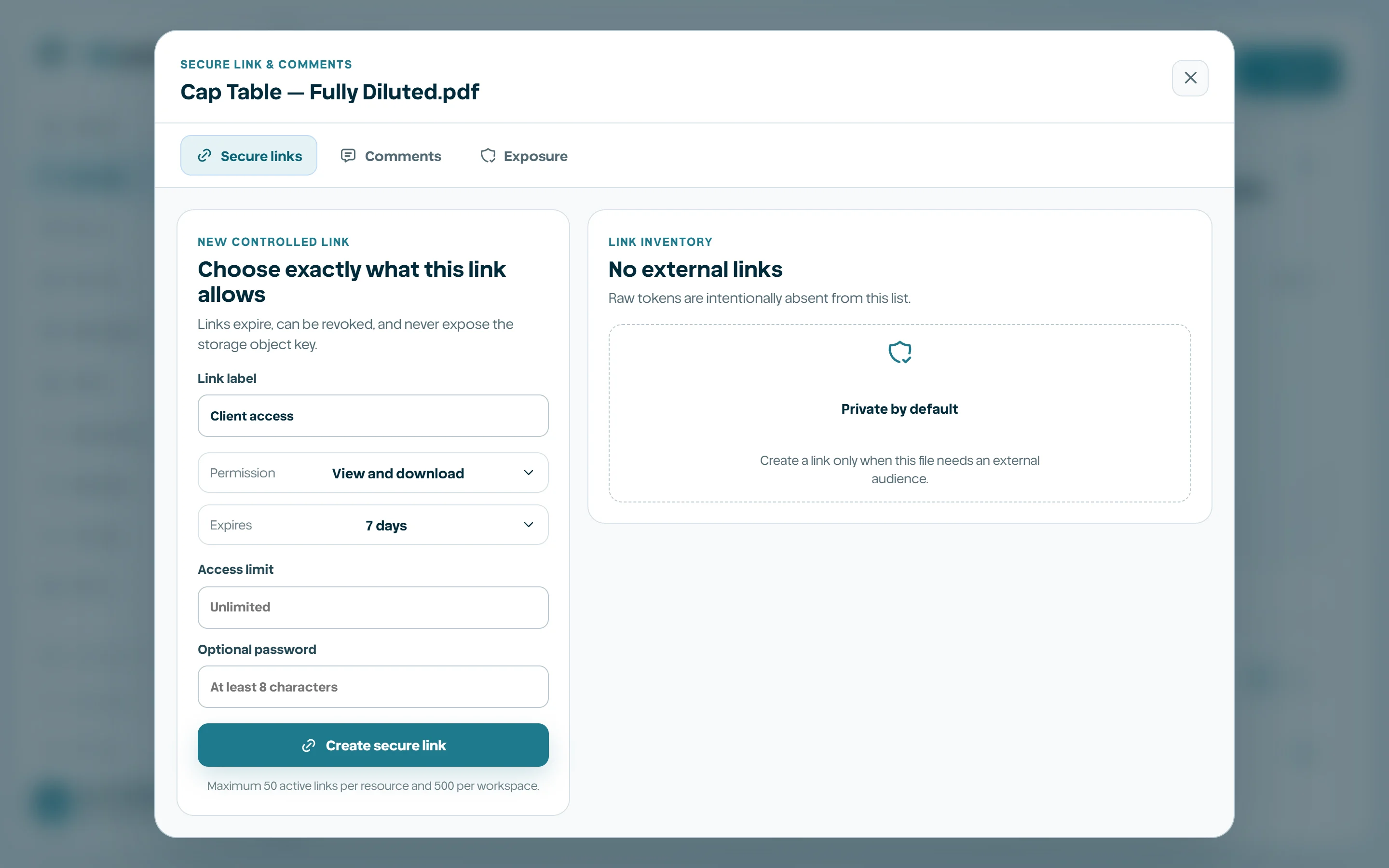
Share & collaborate opens the file collaboration dialog. Secure links are intended for external access to one resource. Set a clear label, permission, expiration, optional access limit, and optional password before creation.
1
Open the file menu and select Share & collaborate.
2
Choose Secure links.
3
Name the link for its recipient or purpose.
4
Select the least permission required.
5
Set expiration and access limit.
6
Add a strong password when the delivery channel requires it.
7
Create and copy the link once.
Create a secure file link02
Comments and exposure
Comments keep file-specific discussion attached to the resource. Exposure summarizes active controlled links and related access posture. Revoke links that are no longer needed rather than relying only on their eventual expiration.
Do not paste passwords into the same channel as the link.
Use recipient-specific labels for later review.
Review exposure after a project closes.
Treat comments as workspace records subject to access controls.

Comments and exposure
Comments keep file-specific discussion attached to the resource. Exposure summarizes active controlled links and related access posture. Revoke links that are no longer needed rather than relying only on their eventual expiration.