FileMentra documentation
Home dashboard
Upload quickly, inspect workspace health, and work with recent files.
Workspace members 7 minUpdated Aug 18, 2026
Read the workspace snapshot
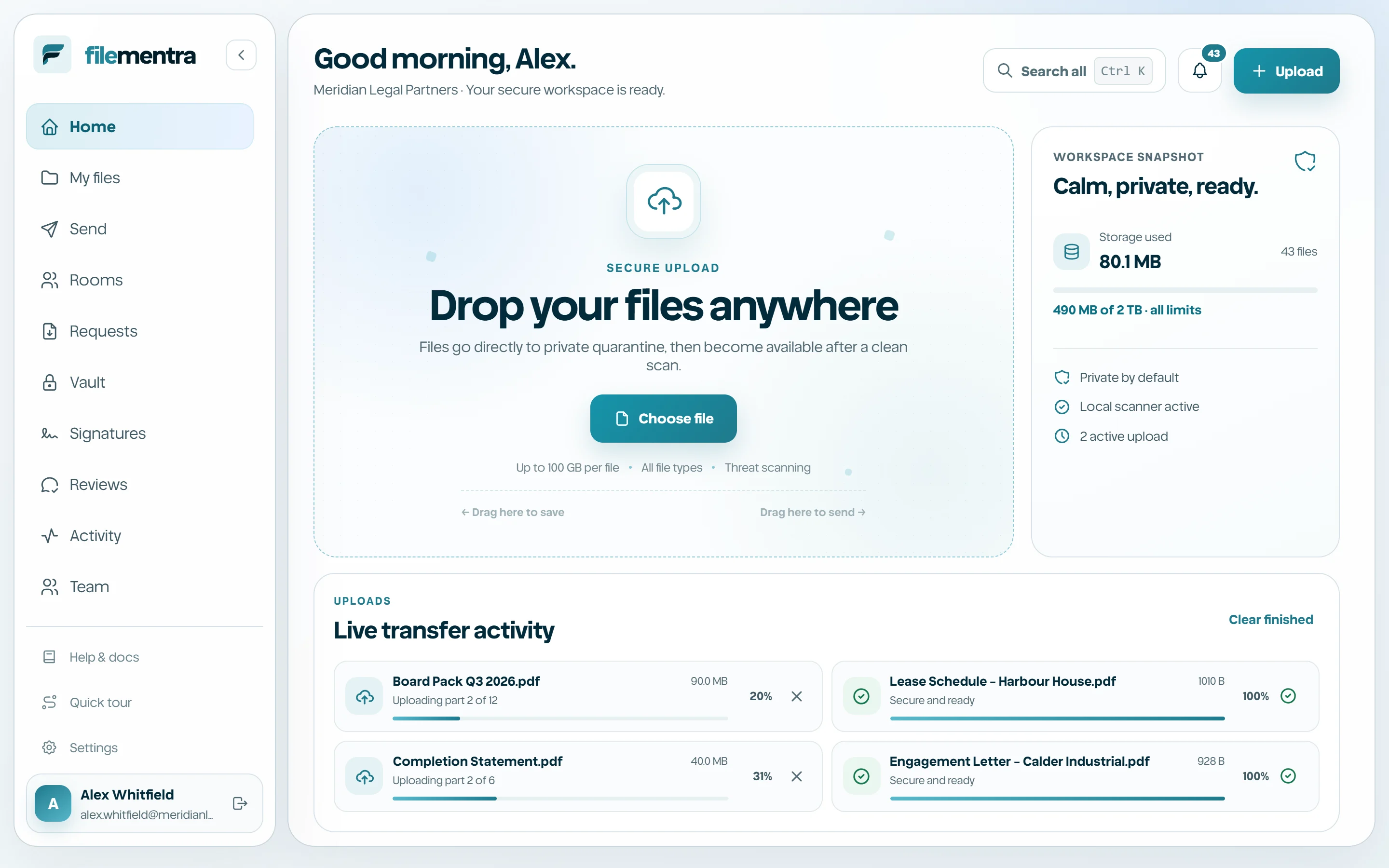
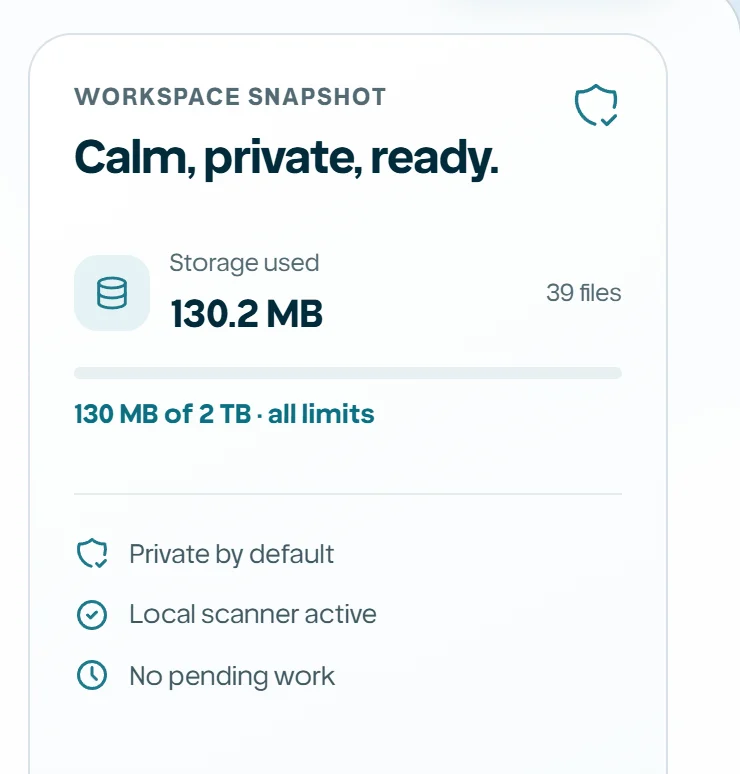
Home is the fastest operational view of the workspace. The upload area accepts files, the snapshot summarizes storage and processing state, and Recent files surfaces content you are likely to continue working with.
- Choose file or drag files into the secure upload zone.
- Use the snapshot to see storage and pending work.
- Switch Recent files between grid and list.
- Sort or filter without changing the underlying files.
Follow upload progress
An upload may be hashing, transferring, processing, complete, failed, or cancelled. Keep the page open until the browser transfer completes. Server processing may continue afterward; a file is usable only when its clean/available state is confirmed.
- 1
Select one or more files.
- 2
Watch per-file progress.
- 3
Cancel only the intended active item.
- 4
Retry a failed transfer after checking network and size limits.
- 5
Open My files after the item becomes available.