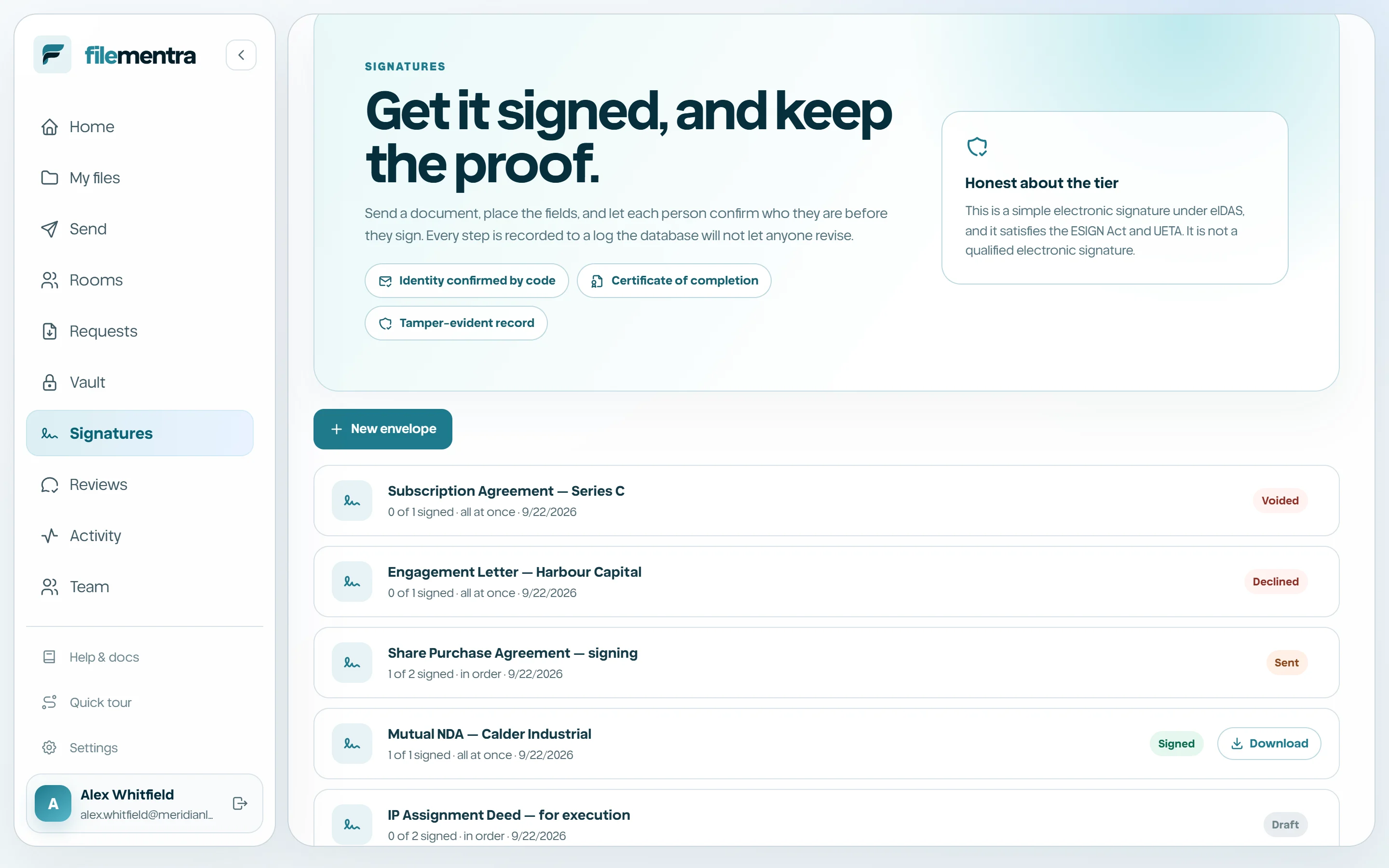
Prepare and send for signature
Turn a PDF into a signing envelope, place the fields each person must complete, and send it.
Create an envelope from a PDF
Signatures work on PDFs only, because the signed result has to be laid out on the page that was actually agreed. Choose the document, give the envelope a title, and add the people involved. The document is hashed when the envelope is created, and that hash is what later proves the pages presented for signature were the pages signed.
Each recipient is either a signer, who must complete fields, or a viewer, who receives the finished document without signing. Choose whether everyone signs at once or one after another, and optionally set an expiry.
- 1
Open Signatures and start a new envelope from a PDF.
- 2
Title the envelope so recipients recognize it in email.
- 3
Add each recipient with their name, email, and role.
- 4
Choose parallel or sequential signing order.
- 5
Set an expiry if the agreement has a deadline.
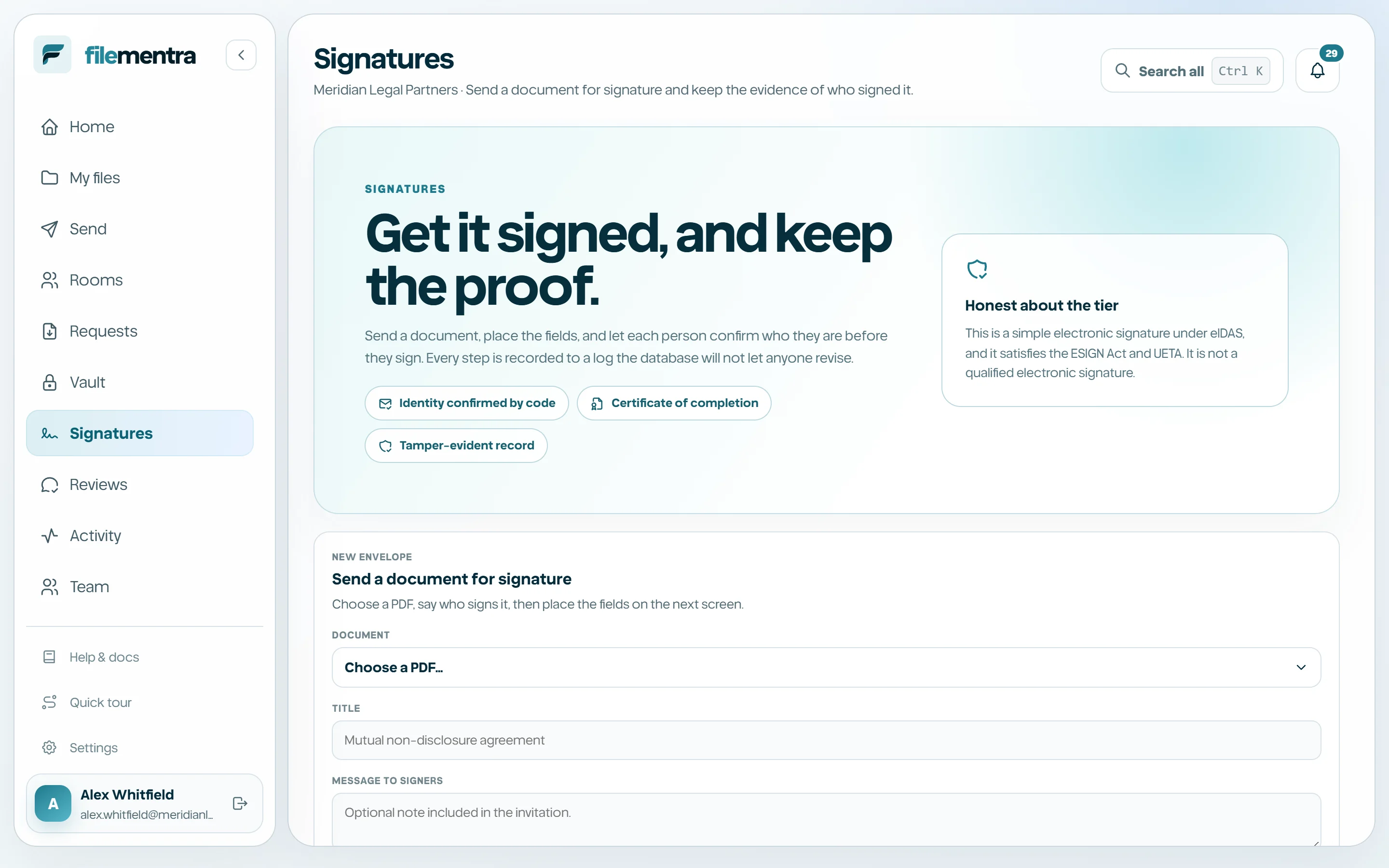
Place the fields
Open the editor and place fields onto the page for each signer. Signature and initials fields are drawn by the signer. Date signed and full name are filled from the envelope itself rather than typed, so they cannot disagree with the recorded evidence. Text and checkbox fields collect anything else the agreement needs.
Every field belongs to exactly one recipient, so each person completes only what is theirs. An envelope with a signer who has no field cannot be sent, because it could never be completed.
- Signature and initials are drawn by the signer.
- Date signed and full name are derived from the envelope.
- Text and checkbox fields cover the remaining details.
- Required fields must be completed before signing can finish.
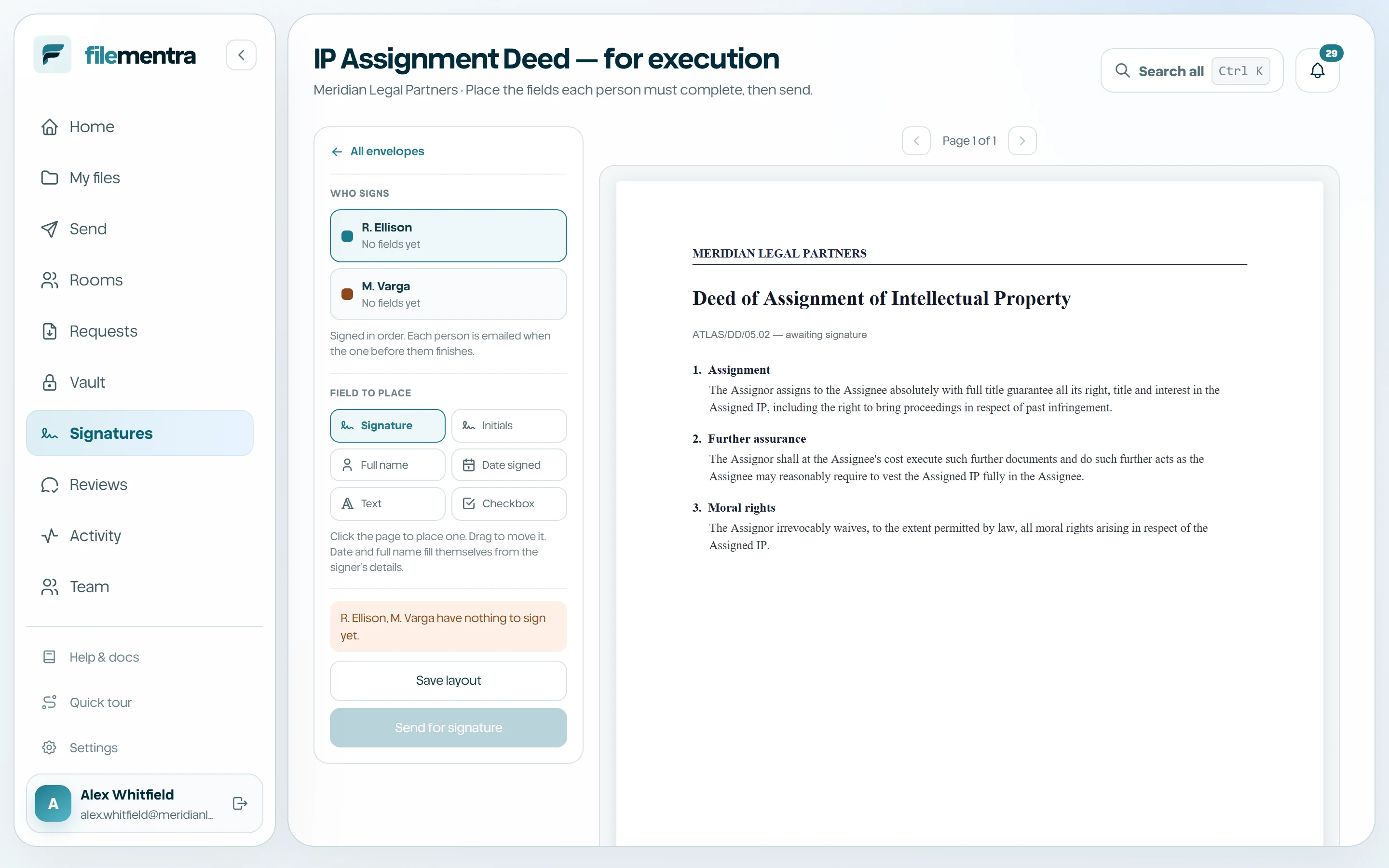
Send and track
Sending mints one private link per recipient and emails it. Under sequential routing only the first signer is notified, and each subsequent person is invited when the one before them finishes. The list view shows where every envelope stands, and a sender can void an envelope that should no longer be signed.