FileMentra documentation
Sign in and recover access
Use password and MFA login, recover a forgotten password, and understand session safety.
Everyone 8 minUpdated Aug 18, 2026
Sign in
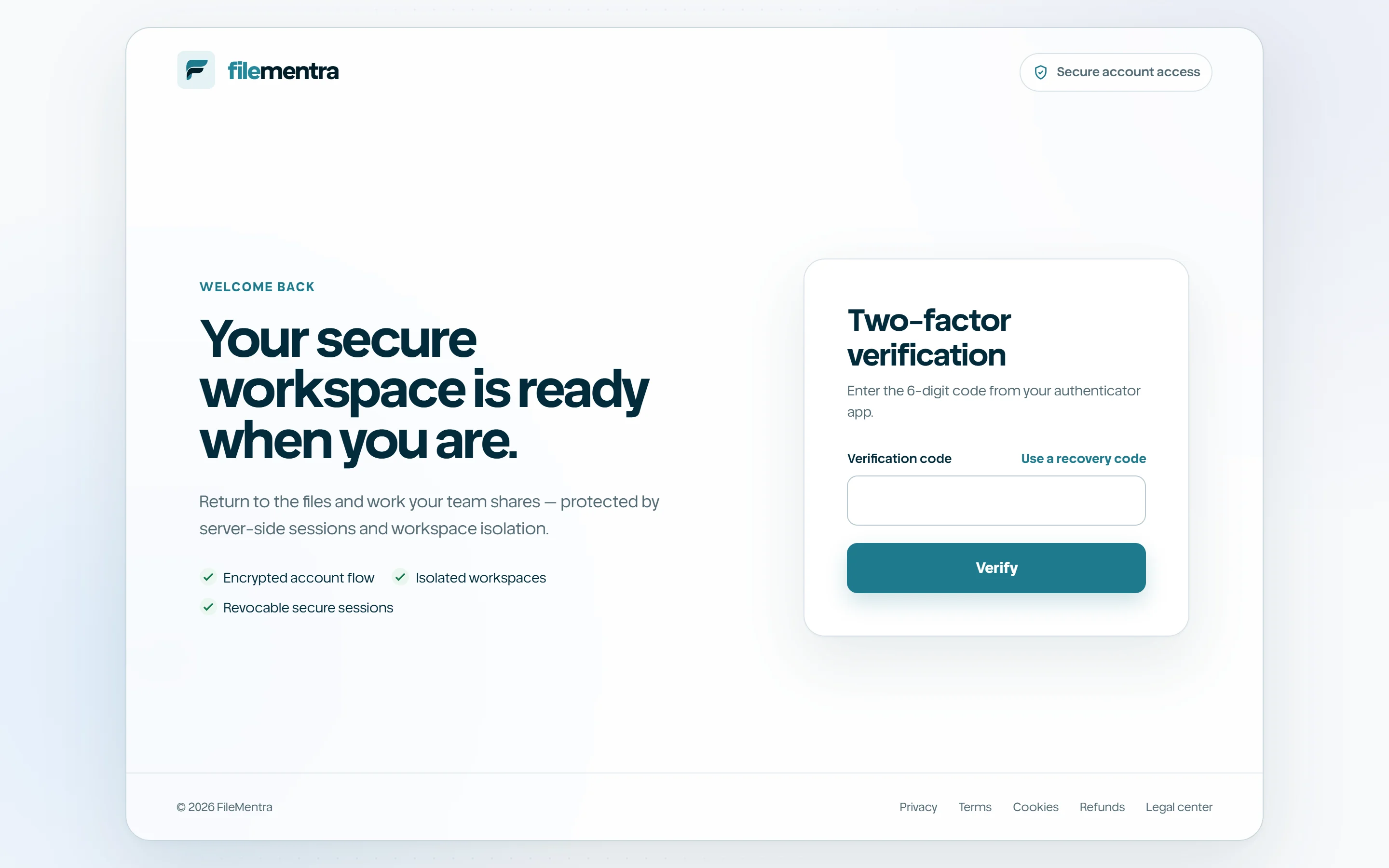
Enter the verified email and password on Login. Accounts protected with MFA continue to a second step for a six-digit authenticator code or an unused recovery code. FileMentra does not reveal whether a failed public recovery request belongs to an account.
- 1
Open Login.
- 2
Enter email and password.
- 3
Complete MFA when requested.
- 4
Confirm the expected workspace and display name after entry.
Reset a forgotten password
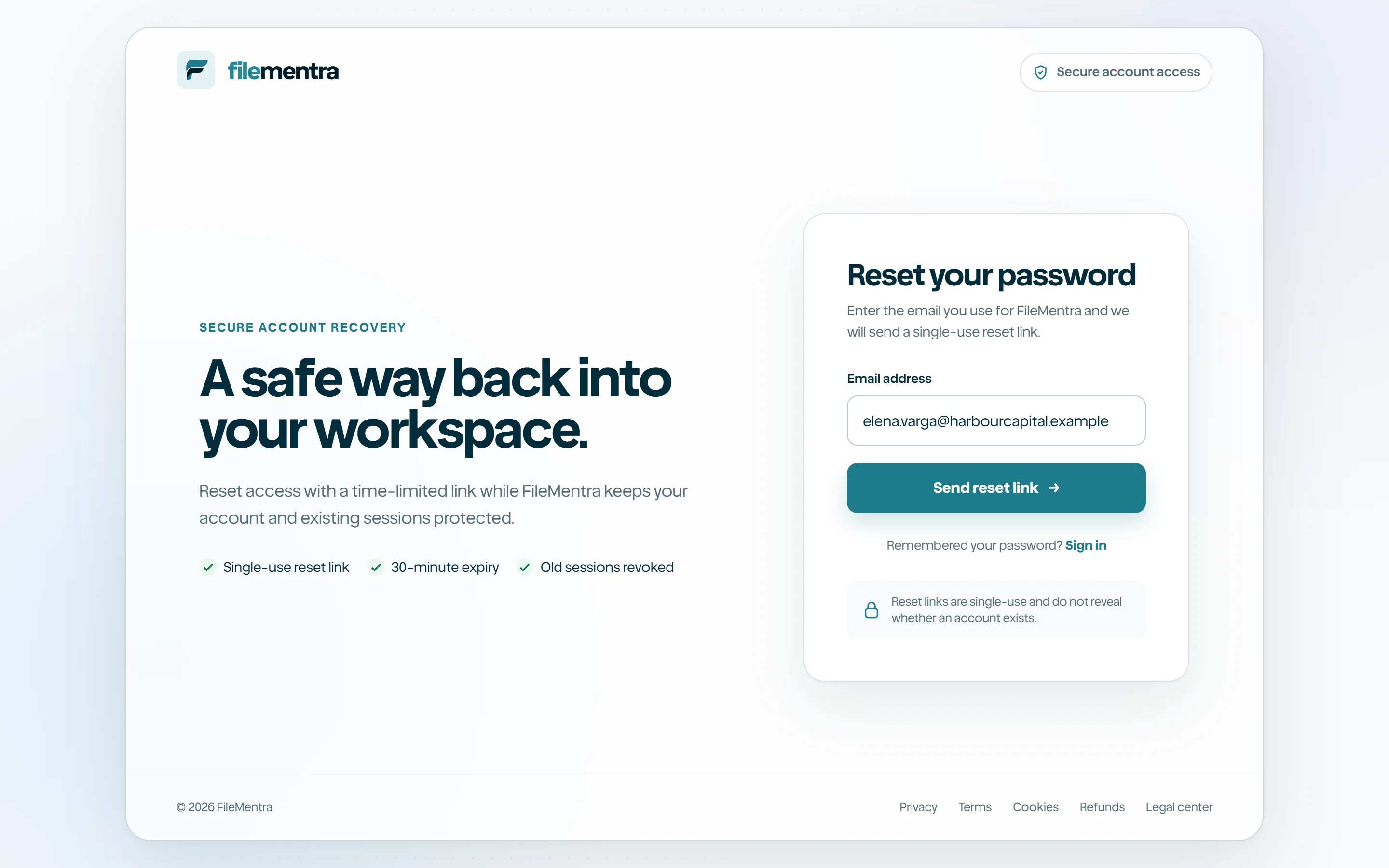
Select Forgot password, submit the account email, and open the newest reset message. The reset token is single-use and time limited. After choosing a new password, sign in again and review active account security settings.
- Use a new password that is not reused elsewhere.
- Treat a reset email you did not request as a security signal.
- Contact the workspace owner if access was suspended rather than forgotten.