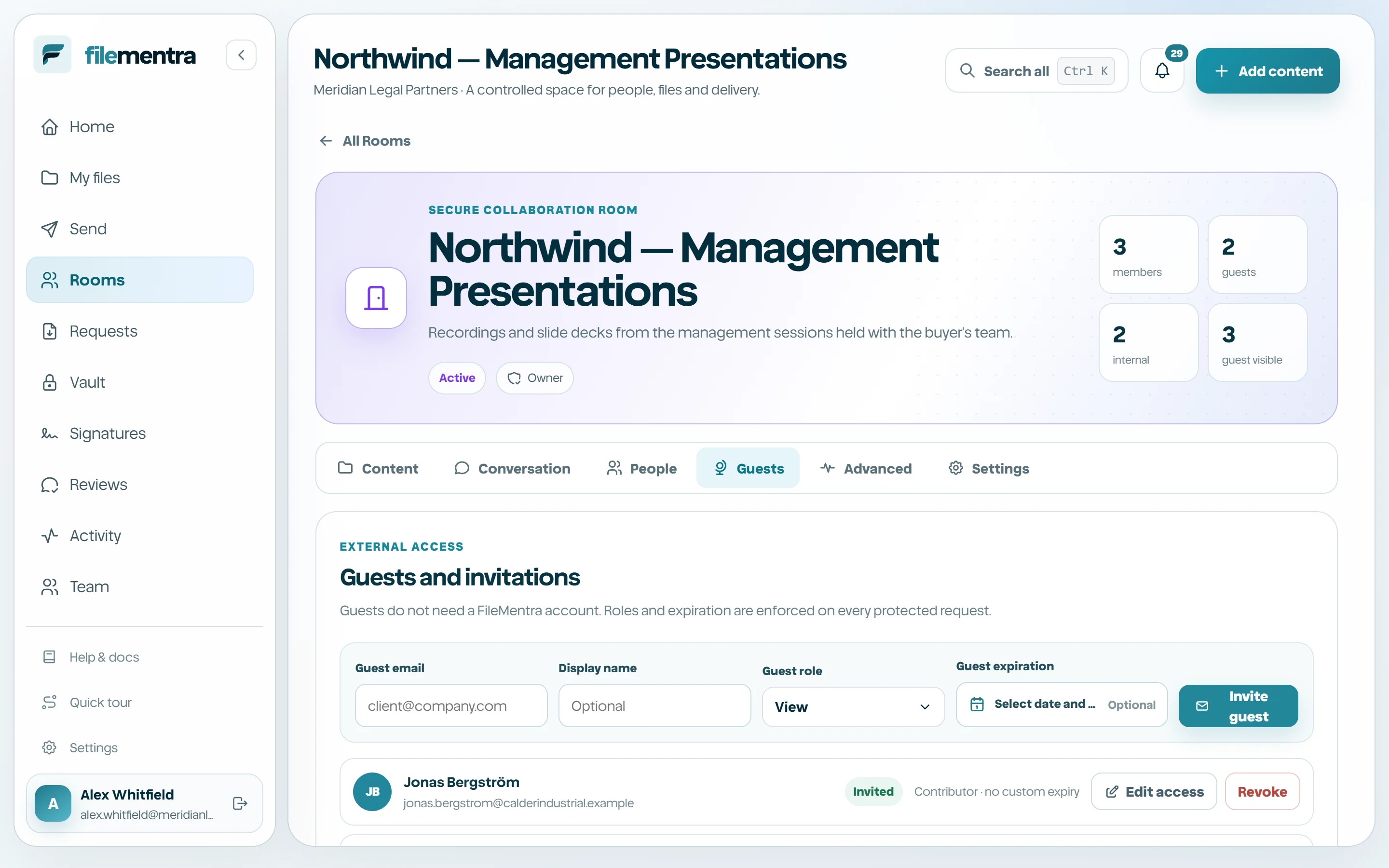
Room members and guests
Assign Room-scoped roles, invite external recipients, and revoke access immediately.
Add workspace members
A workspace member still needs an appropriate Room role to participate. Owner, manager, contributor, reviewer, and viewer roles determine Room actions without automatically expanding access elsewhere in the workspace.
- 1
Open the Room people section.
- 2
Choose an active workspace member.
- 3
Assign the least capable Room role that fits the task.
- 4
Review or remove the membership when responsibilities change.
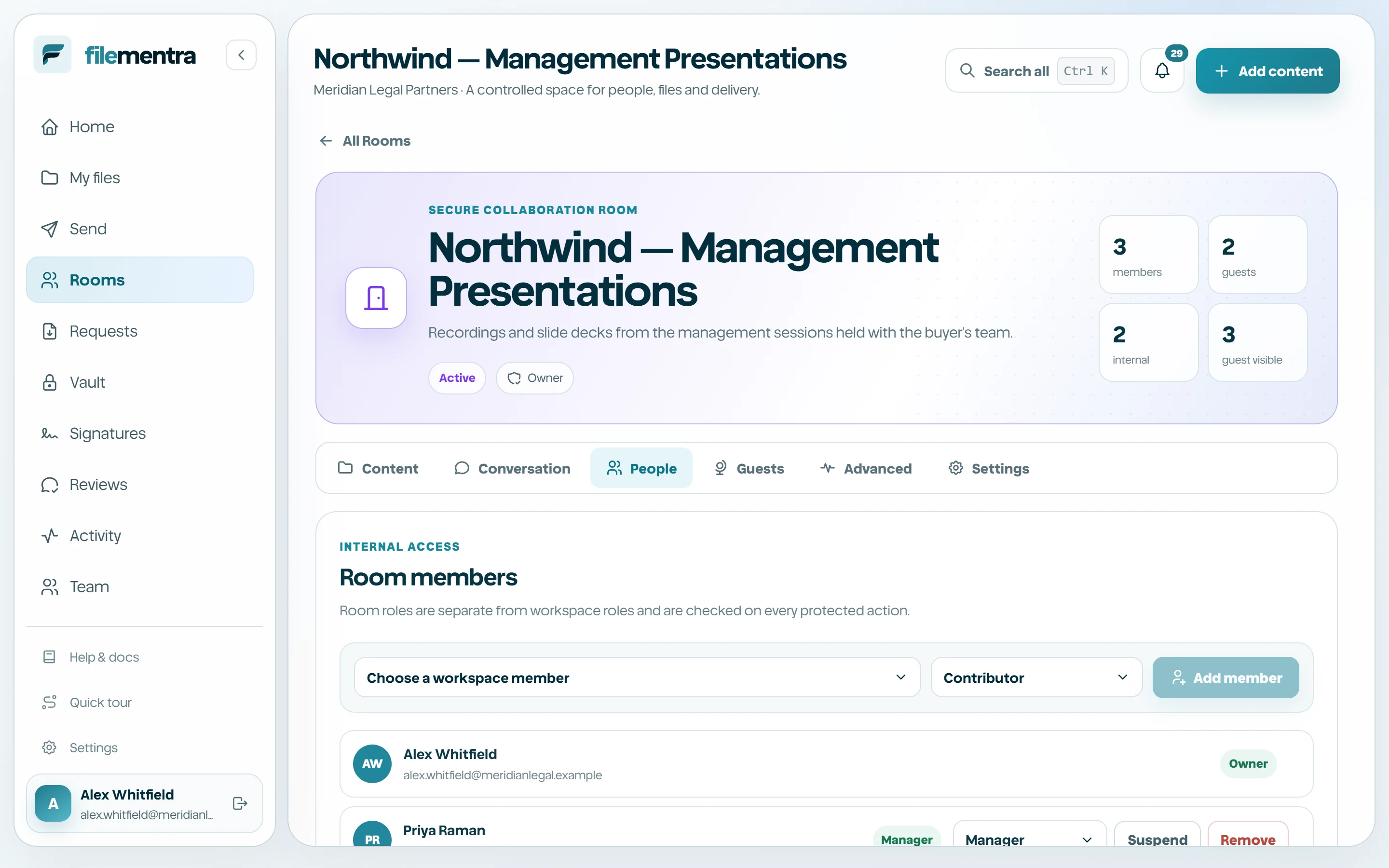
Invite and manage guests
Guests are external, Room-scoped identities. Invitations use opaque credentials and may include display name, role, start date, expiry, domain restrictions, and other Room policy. Changing a role or shortening expiry applies to subsequent requests and can shorten active sessions.
- A guest cannot browse My files.
- Revocation is immediate for future requests.
- A guest sees only external content.
- Invite links should not be forwarded.
- Remove or revoke access when the engagement ends.