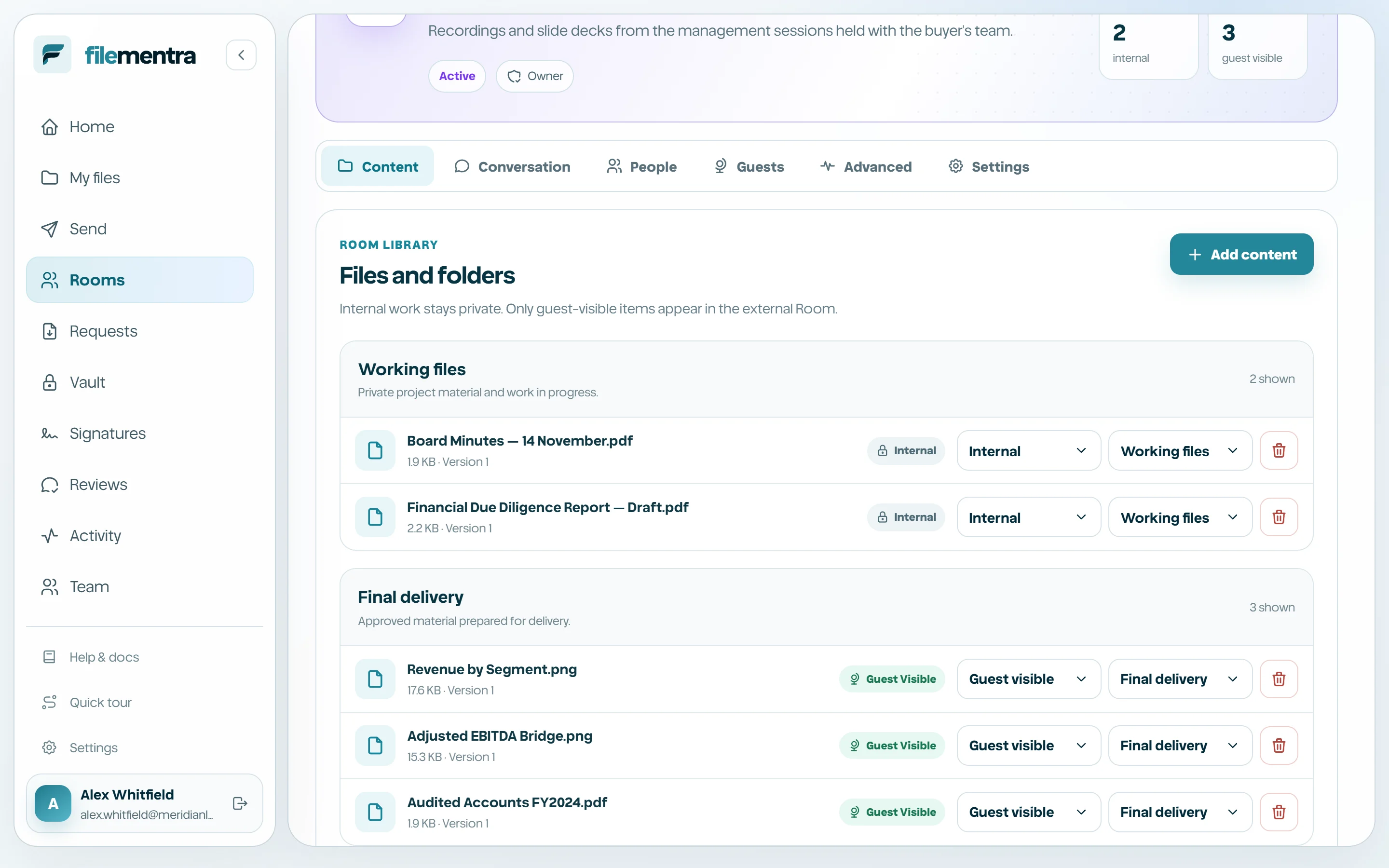
Room content and visibility
Add Drive content, organize working/final delivery, and protect internal material.
Add files and folders
Room content reuses authorized Drive files and folders. Organize items into working content and final delivery as appropriate. Adding a reference does not create a public object URL; every preview and download is checked in the Room context.
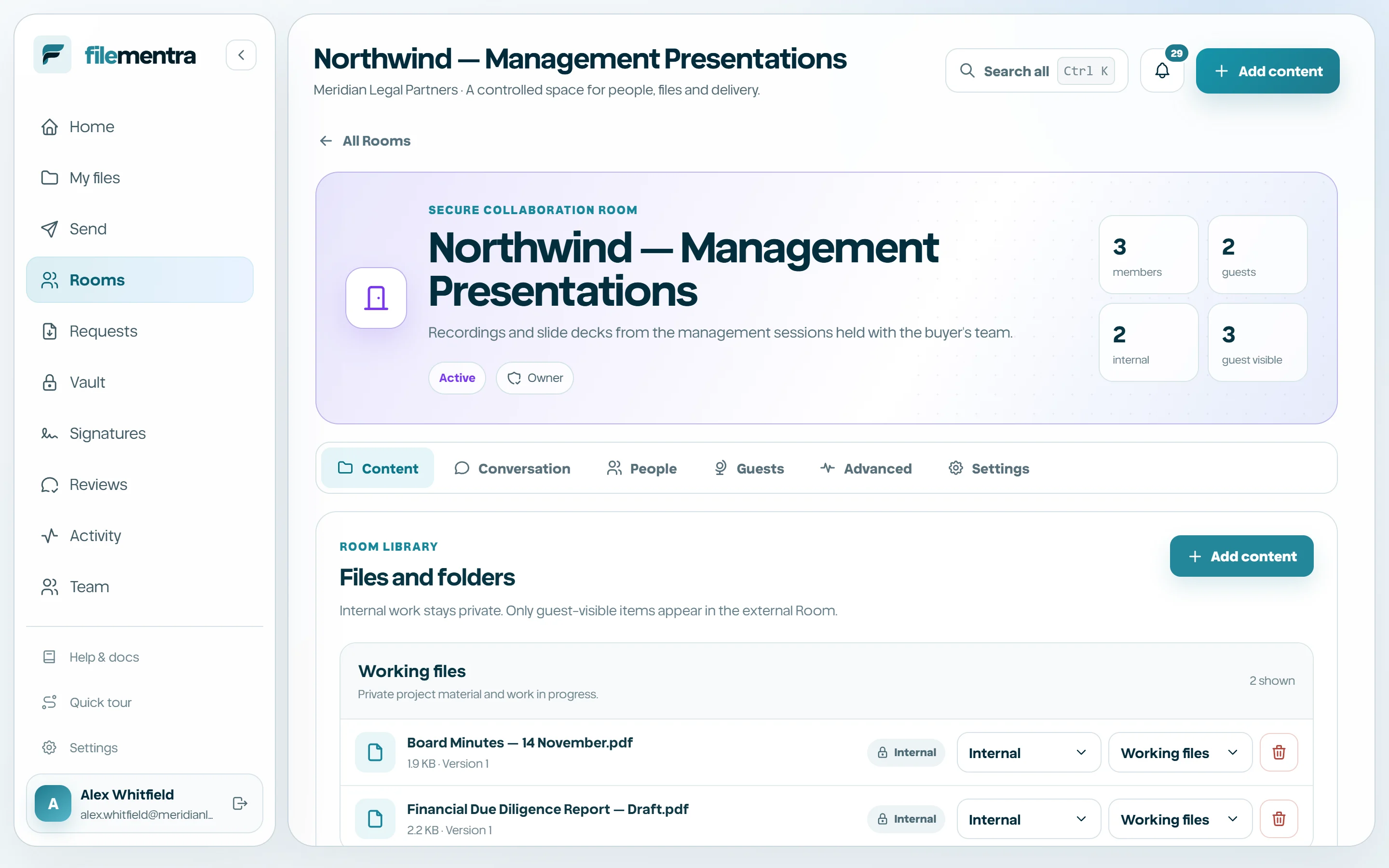
Separate internal and external content
New Room content defaults to internal. Only explicitly external content appears in the guest presentation. External messages cannot attach internal items or reply into an internal thread. This boundary is an authorization rule, not a visual filter.
- 1
Add the content as internal.
- 2
Review the exact version and file name.
- 3
Change visibility to external only when approved.
- 4
Open or test the recipient presentation before sending an invitation.