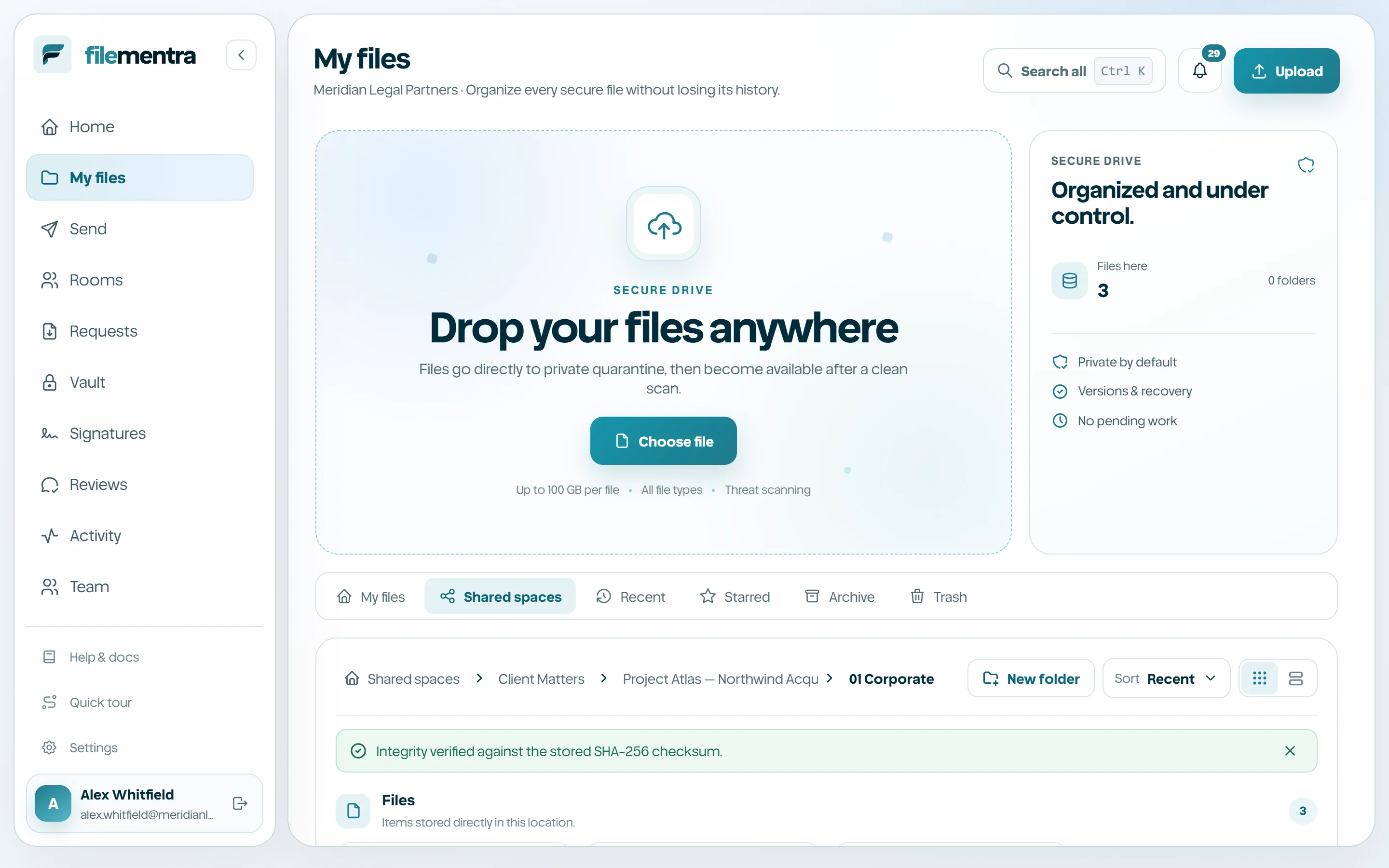
Preview, download, and versions
Inspect supported files safely, download originals, and preserve file history.
Preview a file
Open the file name, thumbnail, eye action, or Preview menu entry. Supported image, PDF, text, audio, and video types use controlled preview paths. Unsupported formats fail safely and can be downloaded only when the user has download permission.
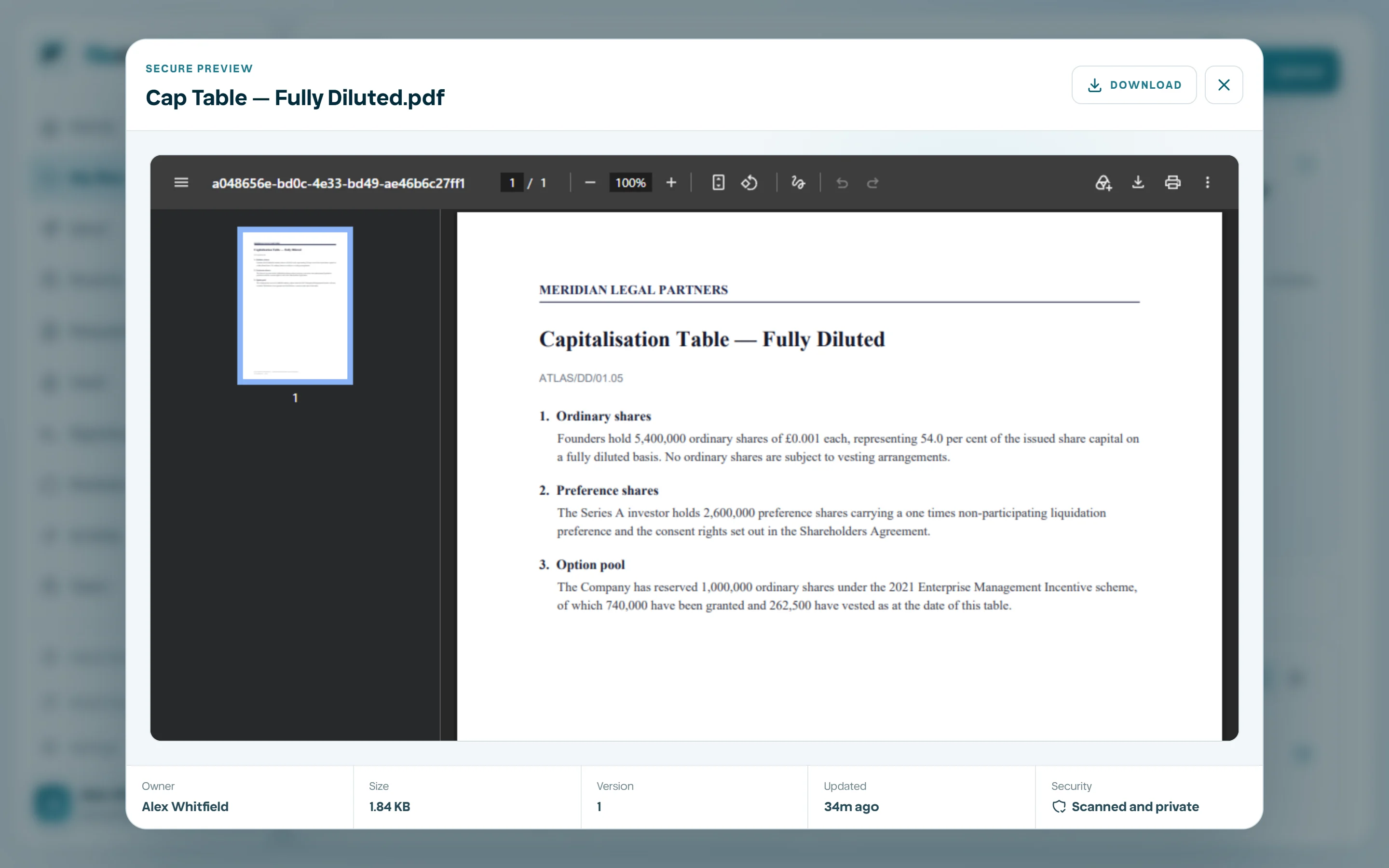
Work with version history
Replacing business content should create a new version rather than destroying the prior record. Version history identifies the current and earlier versions, preserves integrity metadata, and supports restoration where available.
- 1
Open the file action menu.
- 2
Choose Version history.
- 3
Inspect timestamps and version identifiers.
- 4
Preview or download the intended version when allowed.
- 5
Restore only after confirming the business impact.
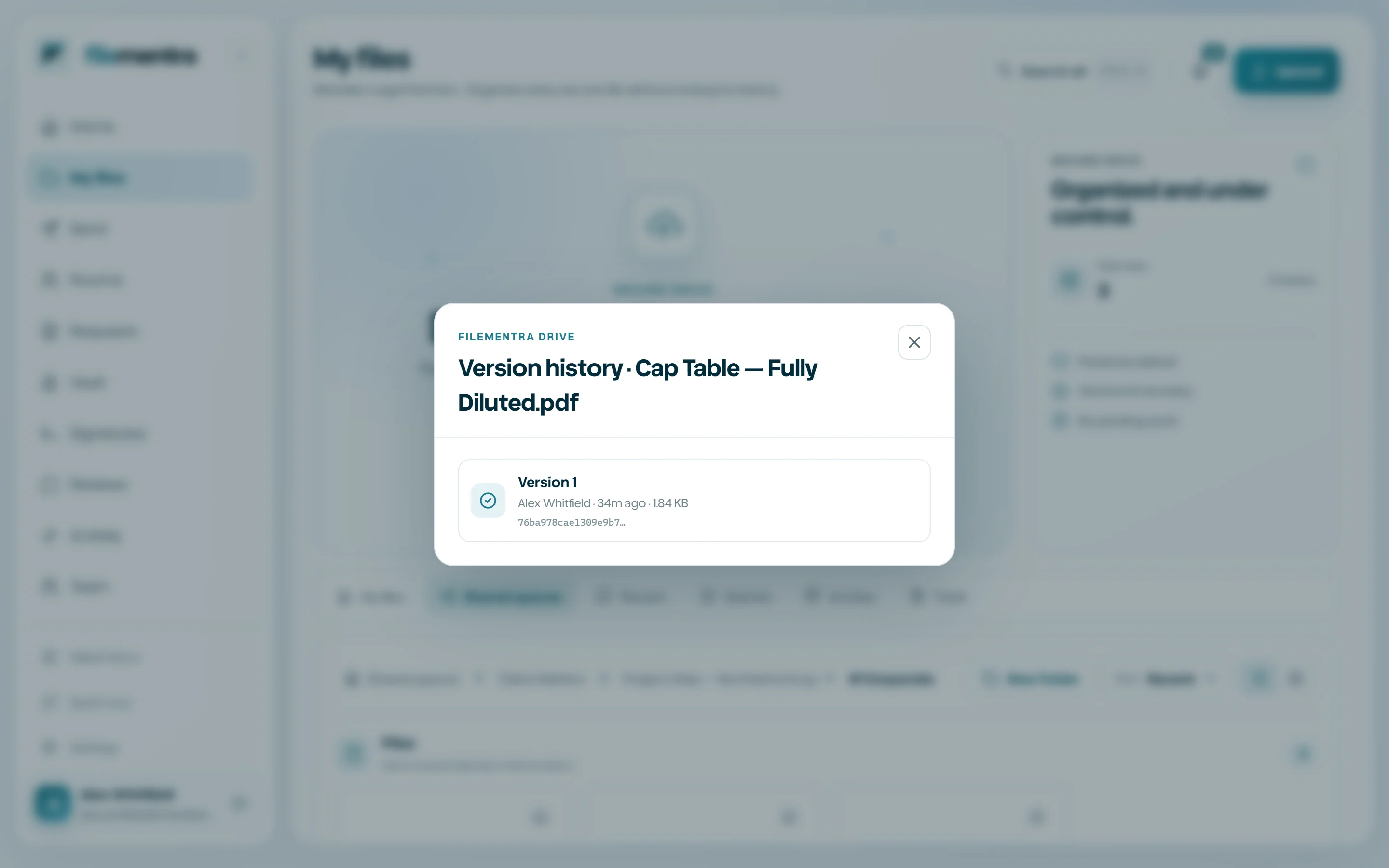
Verify integrity
Verify integrity compares trusted file metadata and checksum evidence. Use it when confirming a delivery, investigating a suspicious change, or preparing review evidence. A verification result does not grant access and should be interpreted with the file's audit history.