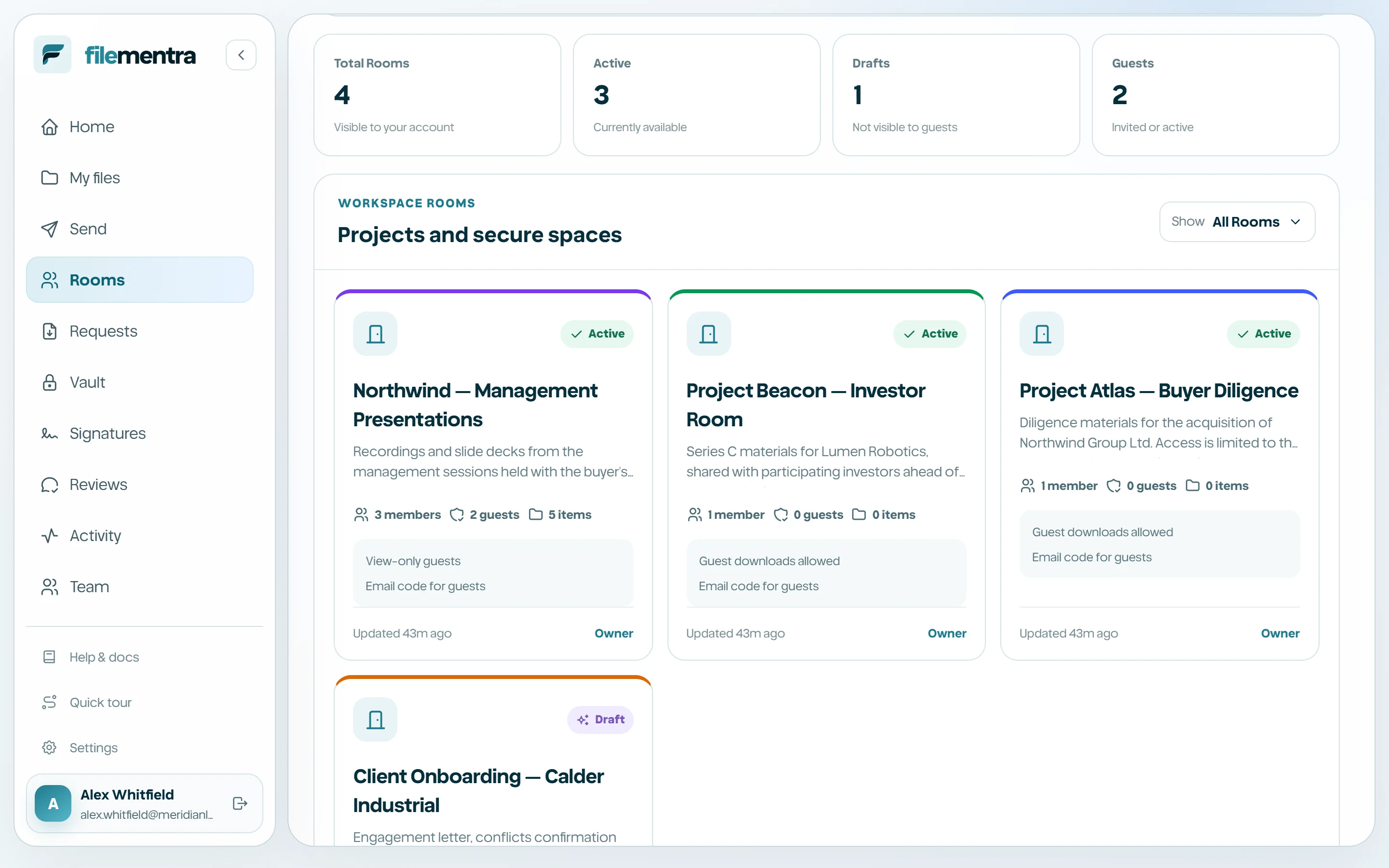
Create and manage a Room
Build a controlled project area for members, guests, files, and delivery.
Create a Room
Rooms are persistent project or client workspaces. A Room combines scoped members, external guests, controlled content, conversation, activity, policies, and a polished recipient presentation without granting general Drive access.
- 1
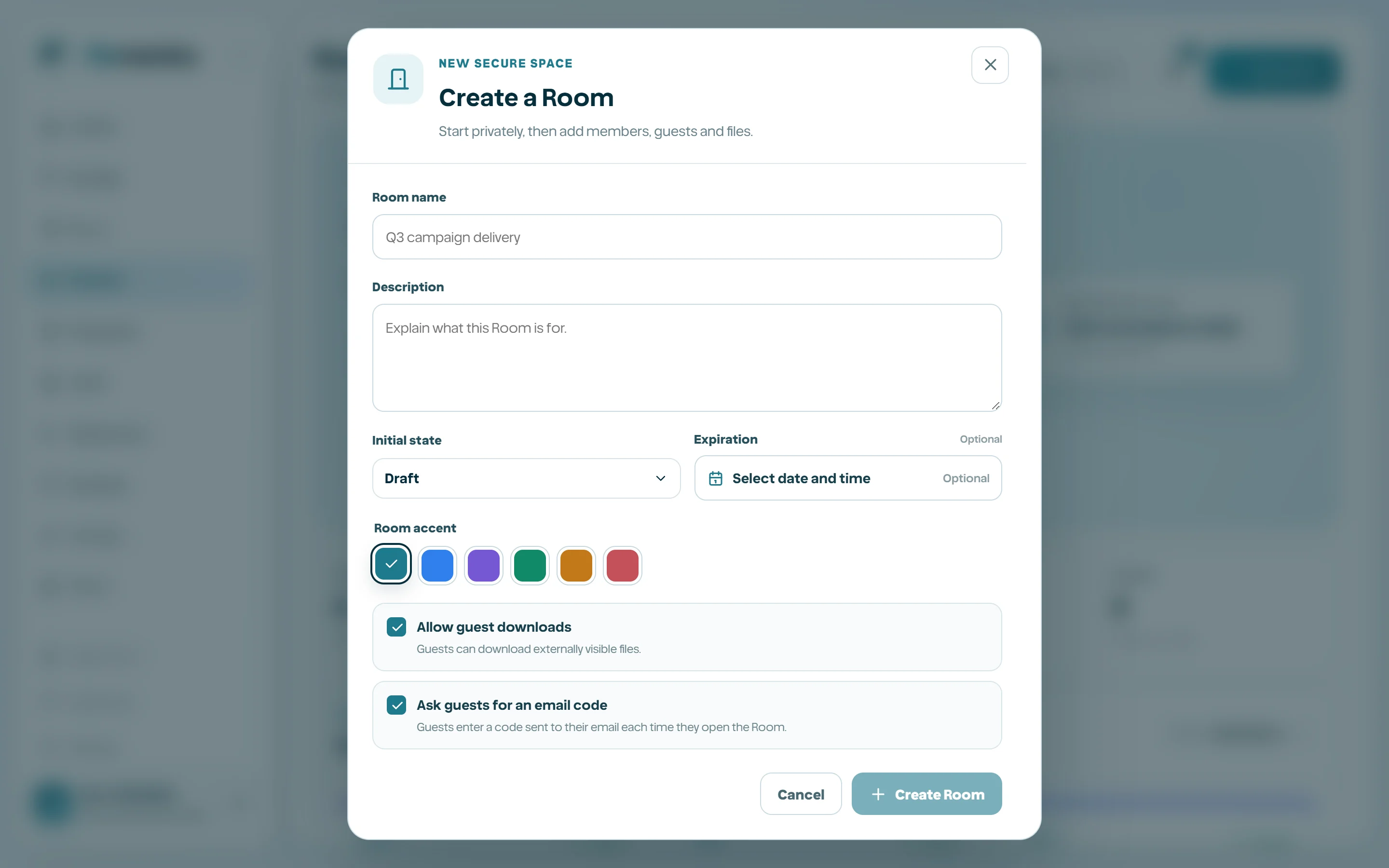
Open Rooms and select New room.
- 2
Enter a durable project/client name and description.
- 3
Start as a draft while content and access are being prepared.
- 4
Configure available security and lifecycle settings.
- 5
Activate only after checking external visibility.
Manage Room lifecycle
Draft Rooms are prepared privately. Active Rooms permit access according to membership and guest policy. Archived Rooms become read-only historical records. Start dates, expiration, revocation, and scheduled automation are enforced server-side.
- Use draft for setup.
- Use active only after external content has been reviewed.
- Archive completed engagements.
- Clone or template structure instead of reopening an unrelated archived Room.