Redact a PDF before sharing
Permanently remove confidential passages from a PDF and keep a verified, separate redacted copy.
Why a black rectangle is not a redaction
Drawing a filled rectangle over a paragraph in a PDF viewer hides it visually and changes nothing underneath. The words stay in the page content stream, so the recipient can select, copy, or extract them straight back out. This is the failure behind well-known disclosure incidents, and it is the exact outcome this tool exists to prevent.
FileMentra removes the marked content from the document itself, then draws the mark in its place. Removal and verification are done by two independent engines, because checking the work with the same component that performed it would only prove that component is consistent with itself.
Open a redaction and mark what must go
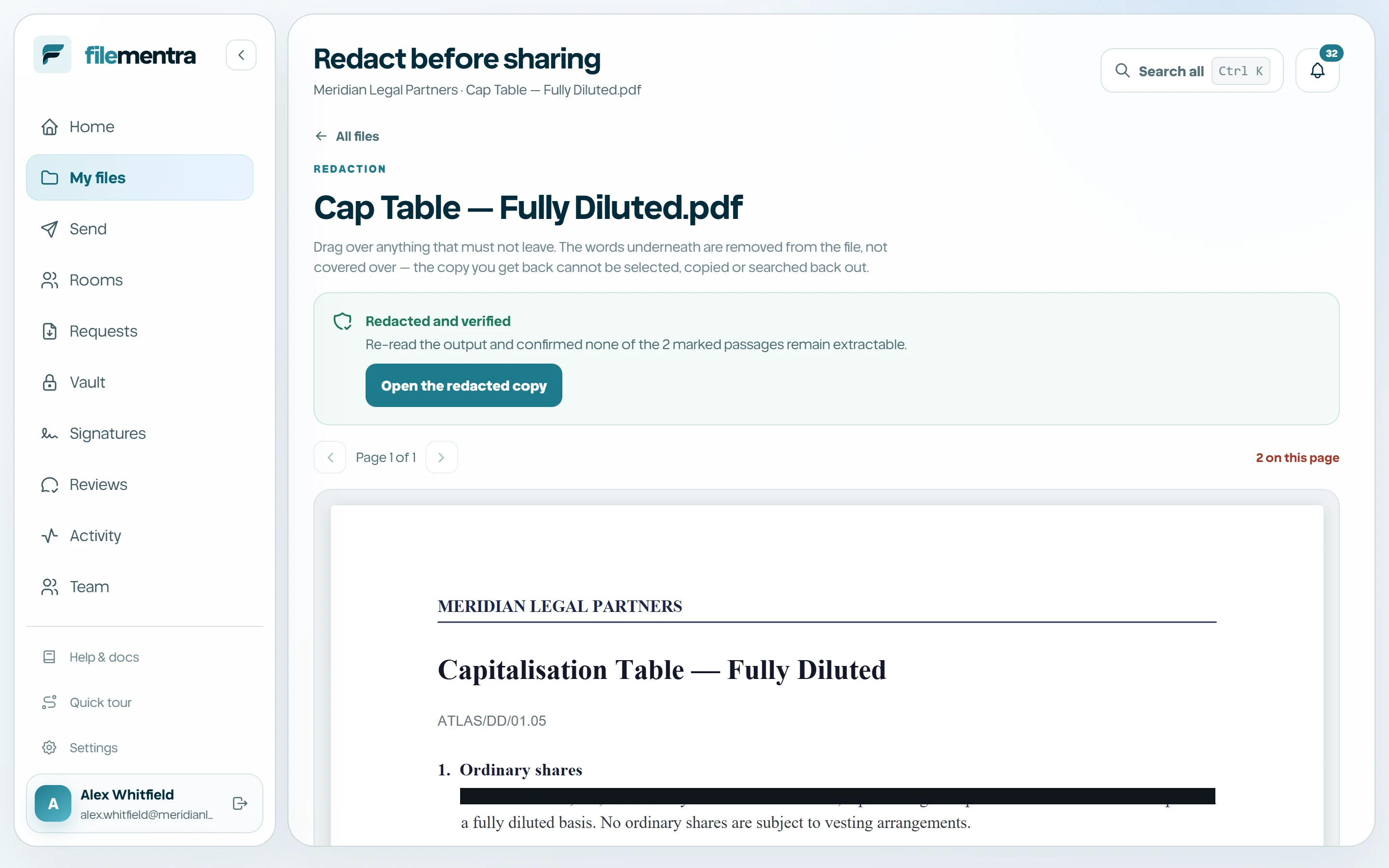
Start from the file menu in My files with Redact before sharing. FileMentra pins the version you are looking at and opens the redaction editor. Draw a mark over each passage, resize or move it until it covers the content exactly, and give every mark a reason such as personal data or commercial terms.
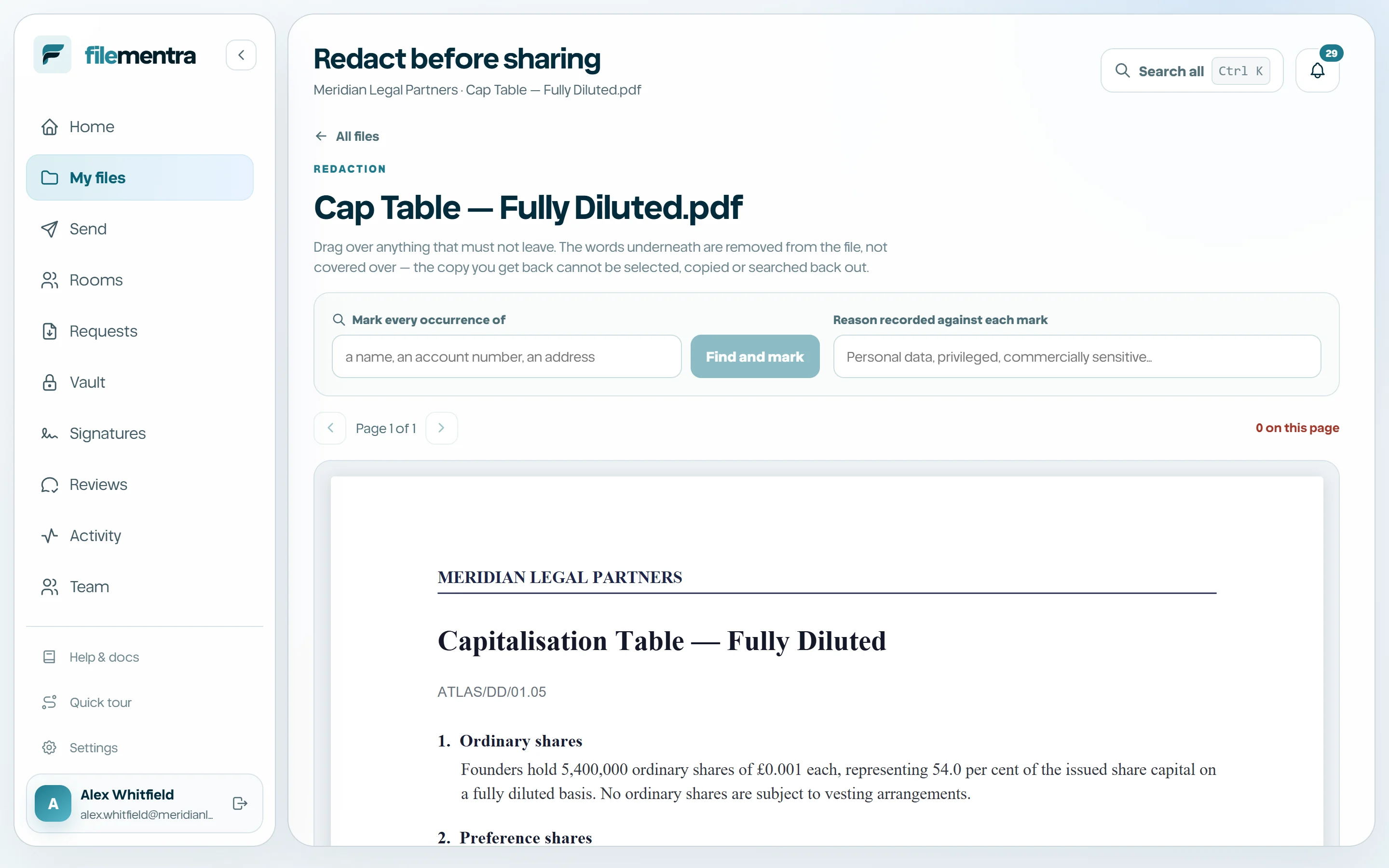
Search finds every occurrence of a phrase so a recurring name can be marked across the whole document rather than by eye. On pages that carry no text layer the search reads the page image instead, up to a page limit, so a long scan cannot silently turn an interactive action into a long wait.
- 1
Open the PDF in My files and choose Redact before sharing.
- 2
Draw a mark over each passage that must not leave the building.
- 3
Resize and reposition marks so they fully cover the content.
- 4
Record a reason for every mark.
- 5
Optionally search for a phrase and mark all of its occurrences.
- 6
Apply the redaction.
What happens when you apply
Applying removes the content beneath every mark and then reads the result back to confirm the words can no longer be extracted. If any marked passage is still findable, the output is discarded and the job fails rather than producing a document that only looks safe.
Scanned pages have no text to search for afterwards, so a text check there could never fail. Those pages are verified by their image data instead, per mark, against the specific image the mark covers, comparing the decoded pixels rather than the compressed stream.
- The original file is never modified; a separate redacted copy is produced.
- Each mark records a digest of what it removed, its character count, and its reason.
- The digest proves what was taken out without keeping the confidential text.
- An applied job is sealed, so its marks and evidence cannot be edited afterwards.
- Redaction removes content from the document; it cannot recall a copy someone already holds.